test
Click on "App Launcher"
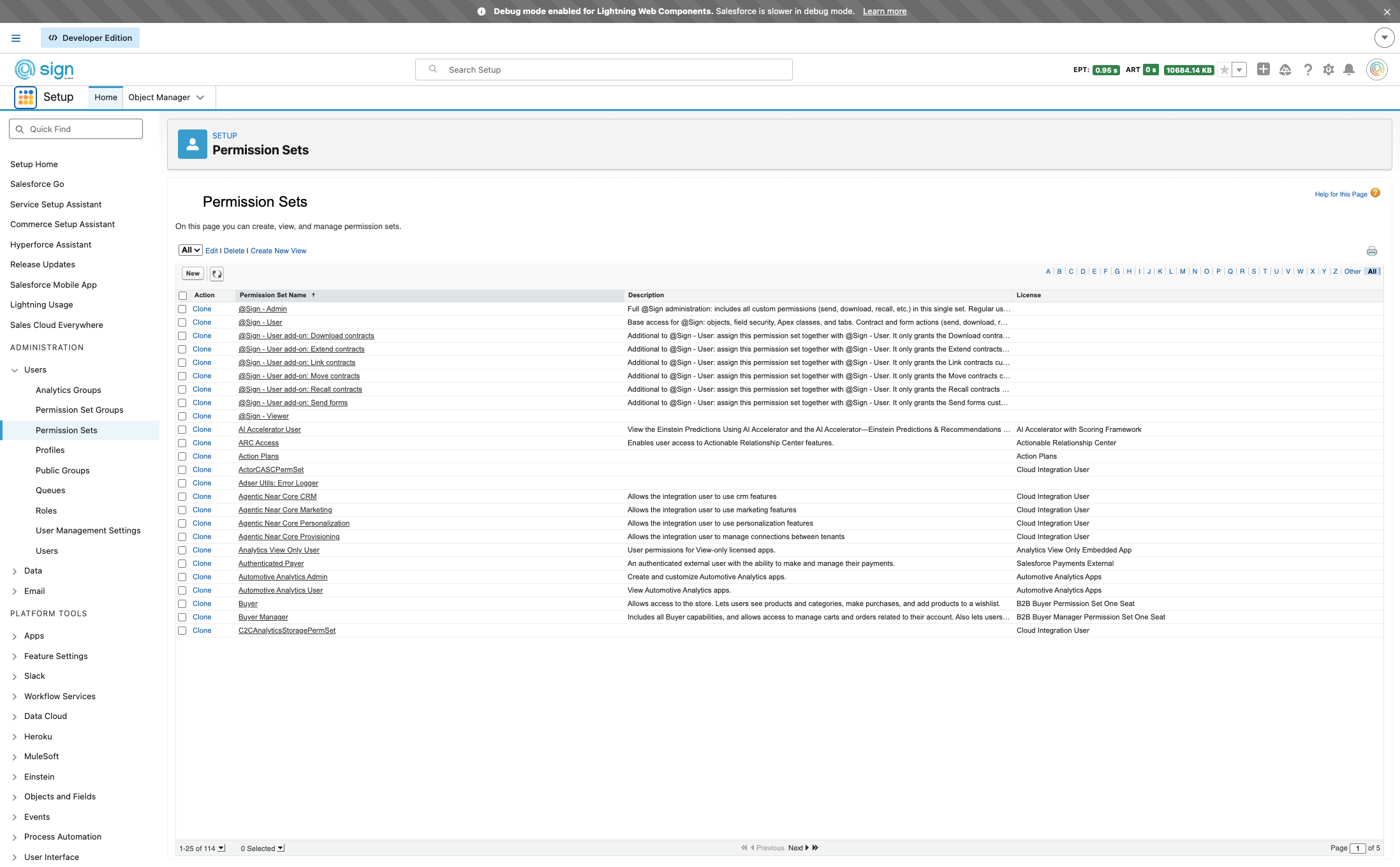
Click on "@Sign Admin"
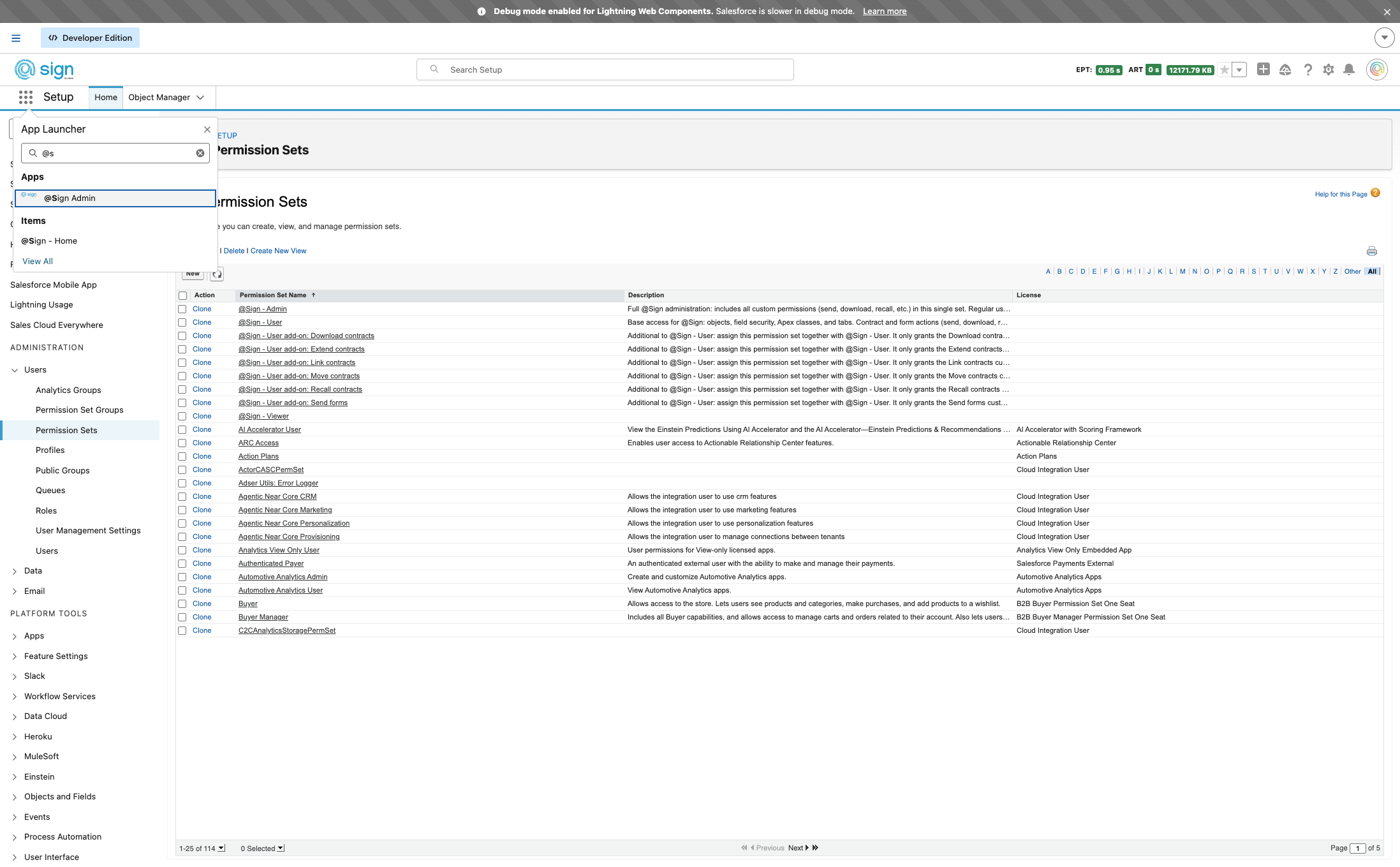
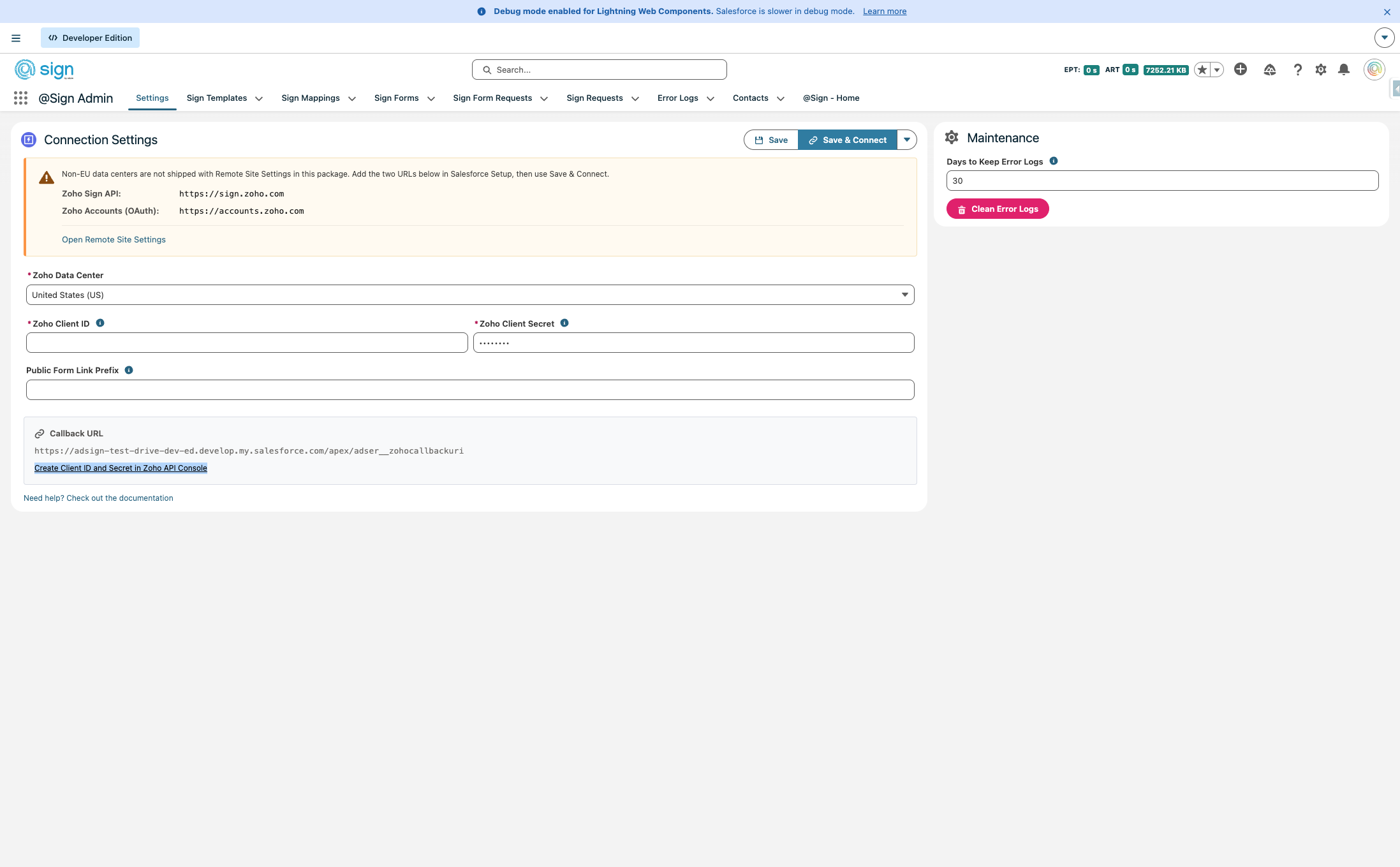
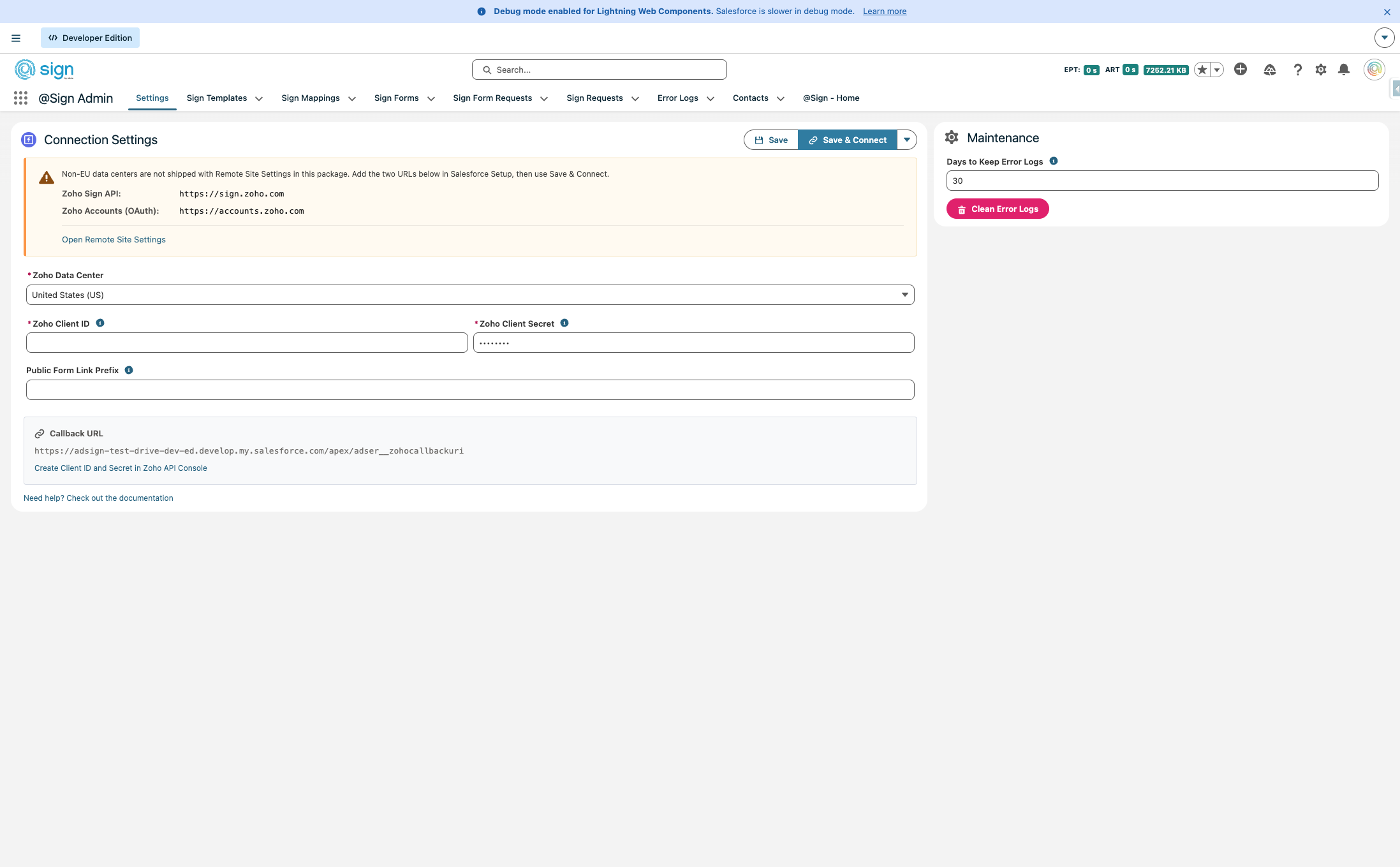
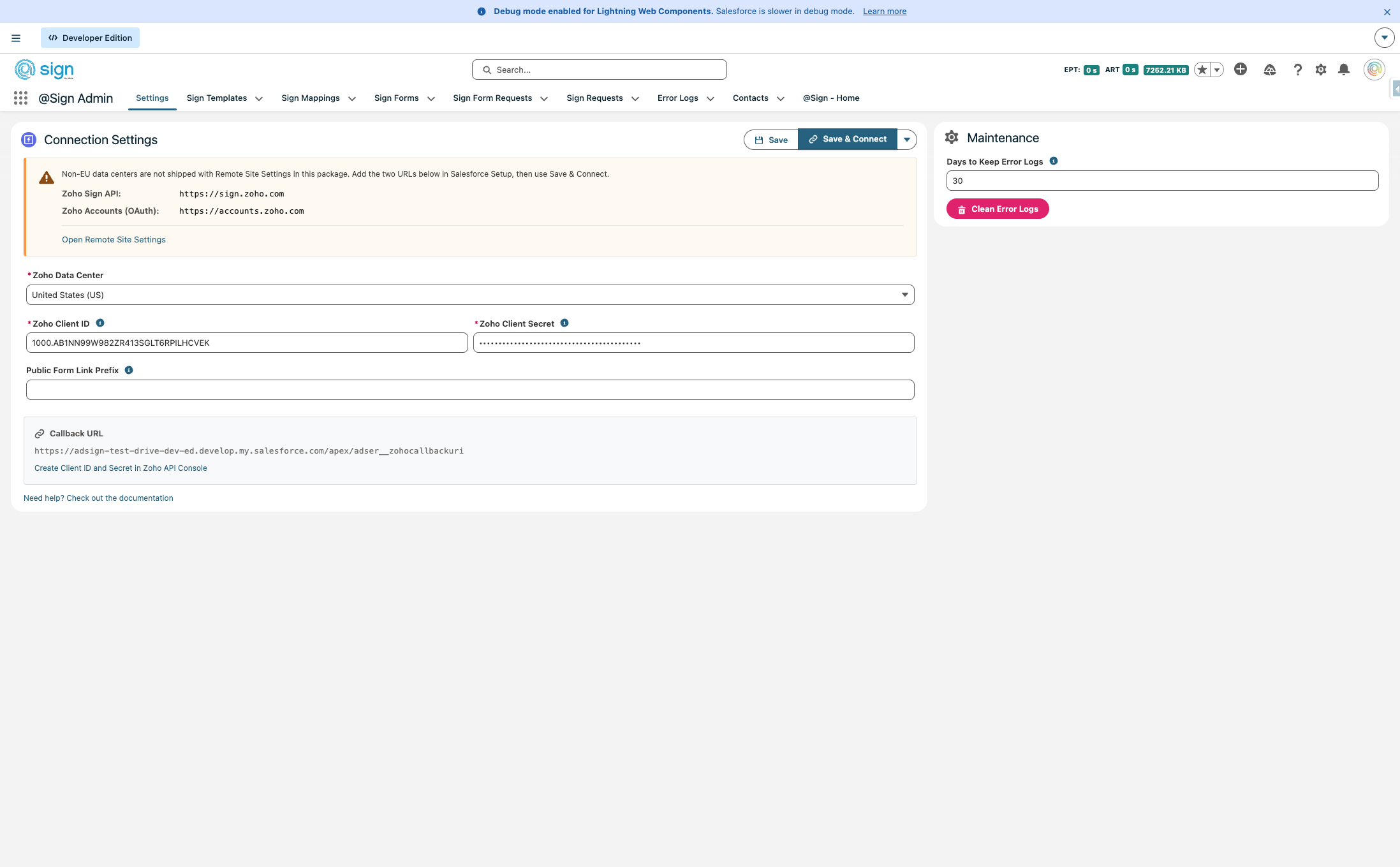
The first thing you need to do is figure out in which data center you're in. You can do this by navigating to Zoho Sign and see what extension the URL has (.com is the US, .eu is Europe, etc.). We, will set it up for the EU. At the bottom of the screen you can see the callback URL, will need it later.
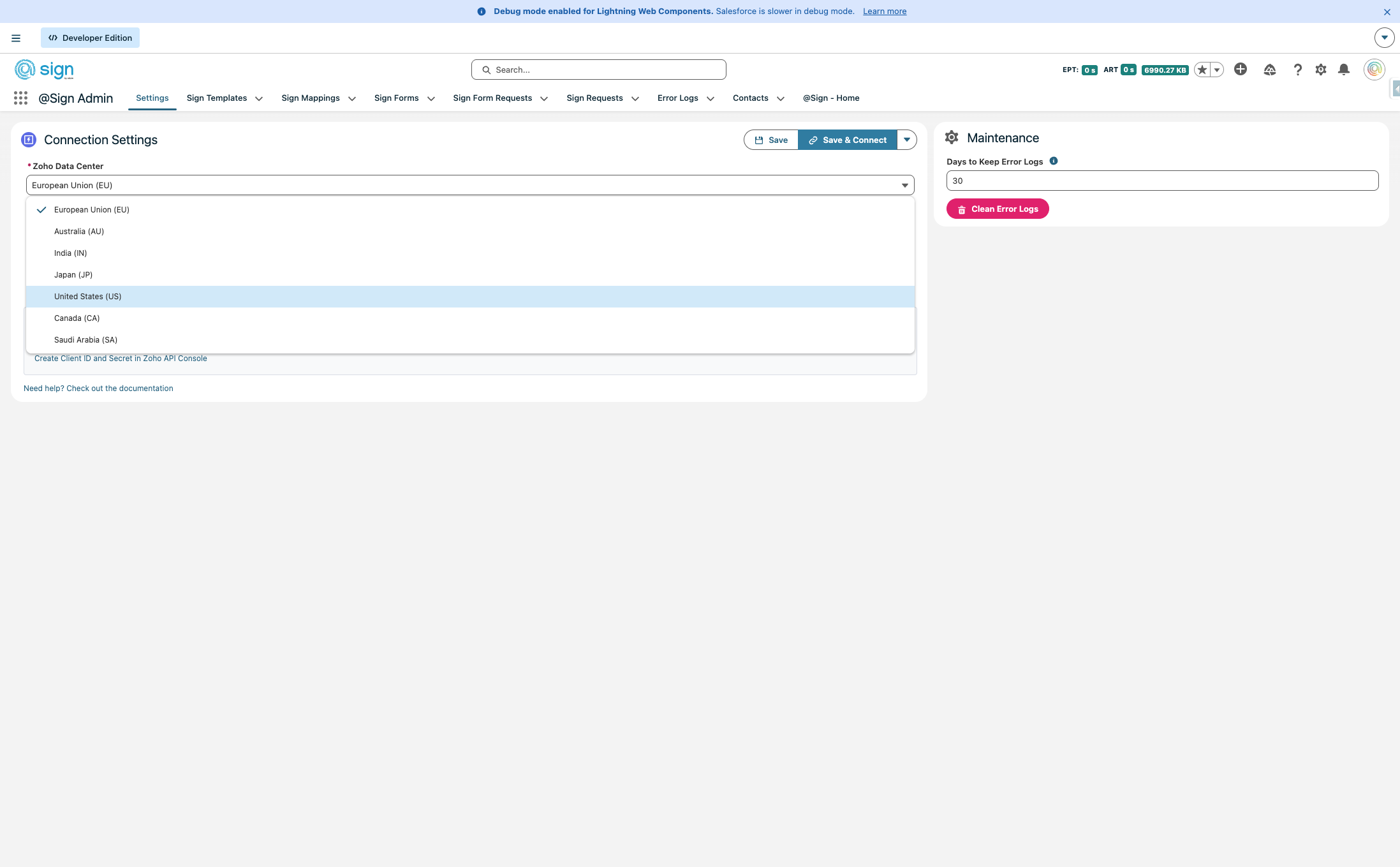
Remote Site Settings (only for non EU setups)
By default the remote site settings for the EU datacenter is installed. If you are in a datacenter other than the EU, you need to configure extra remote site settings. Open the link in a new tab.
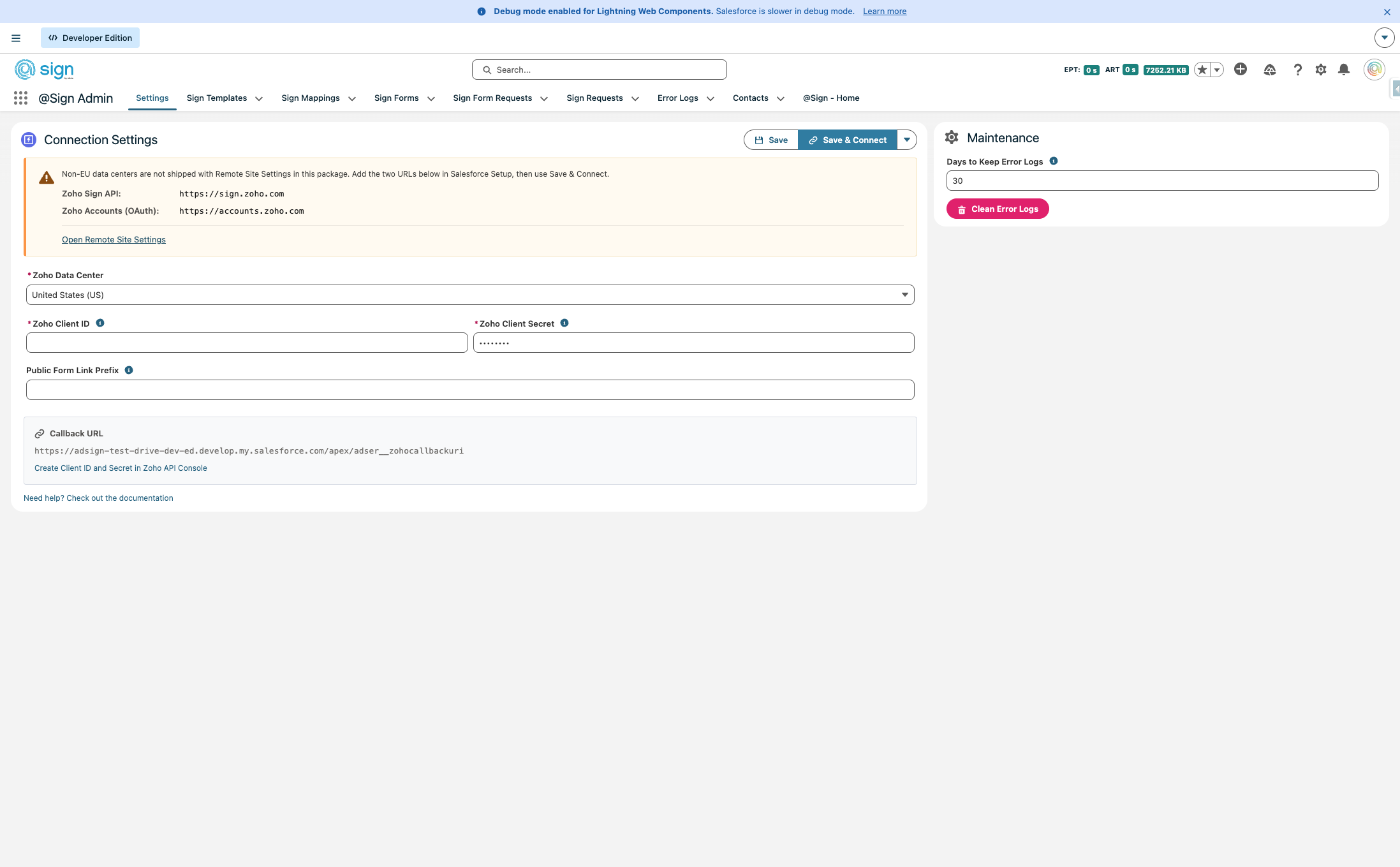
Copy the first url ("https://sign.zoho.com")
In the other tab create new remote site setting.
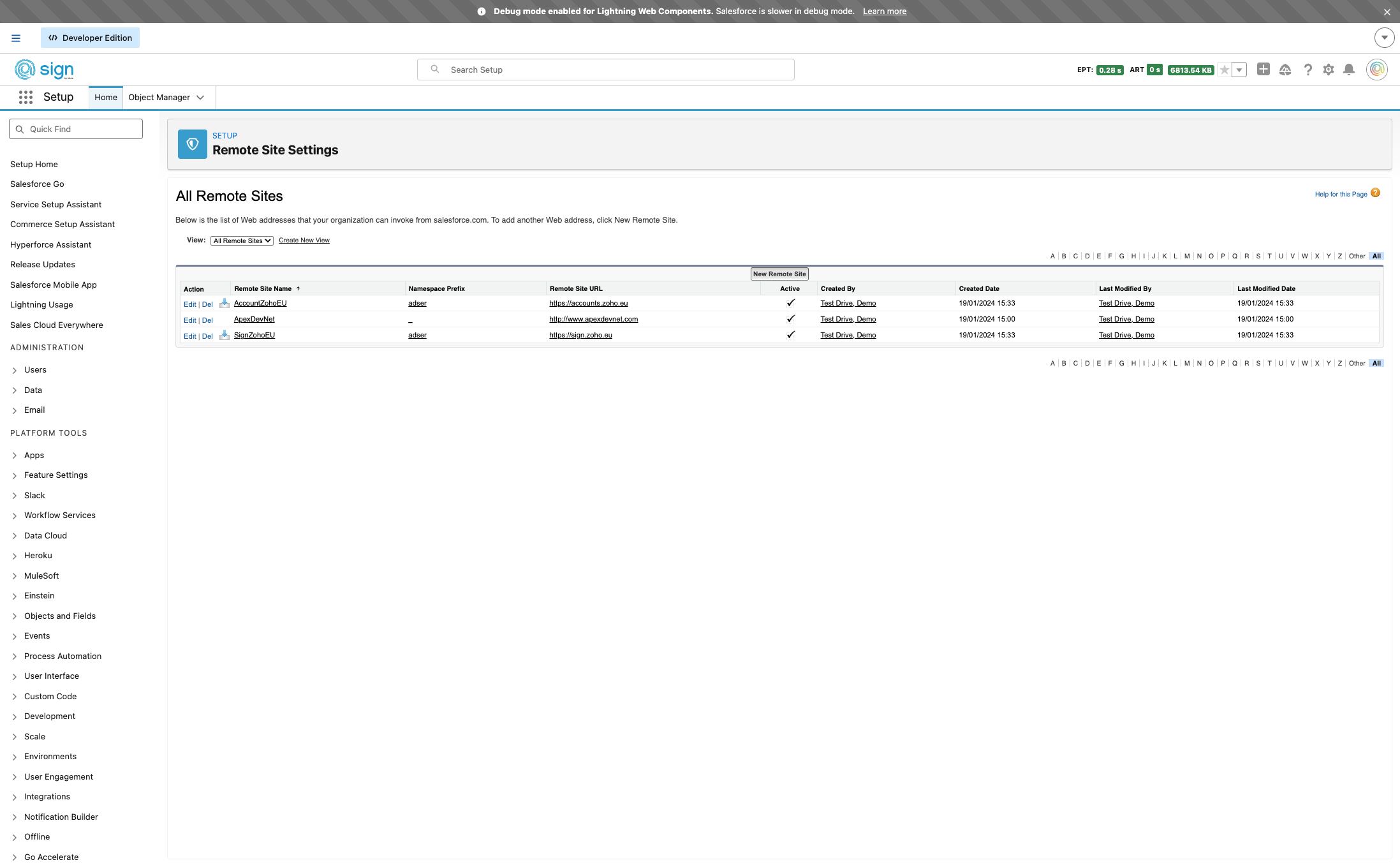
Give the setting a name, it can not contain spaces. We will call it "ZohoSignUS"
Paste the url "https://sign.zoho.com"
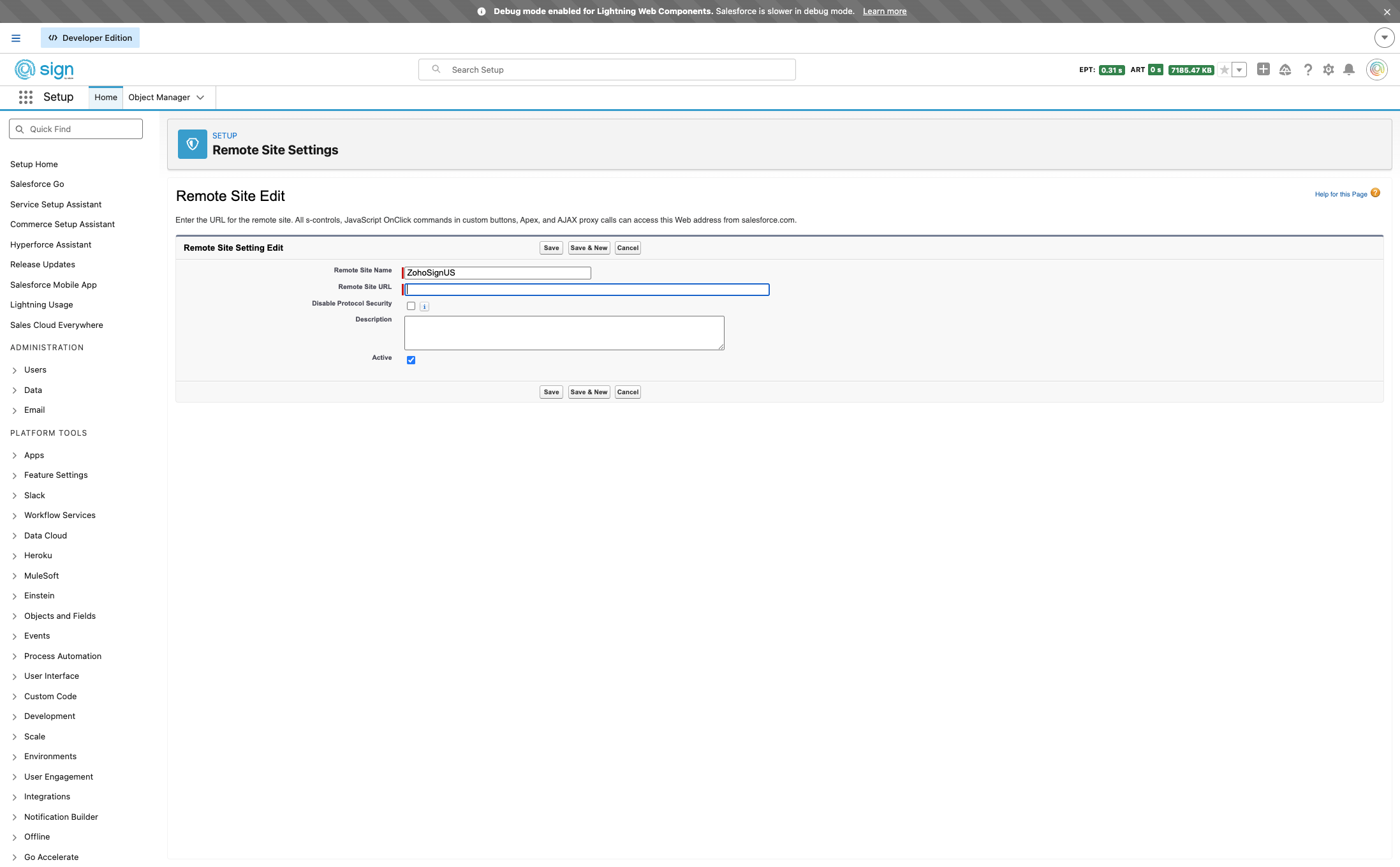
Press "Save and New"
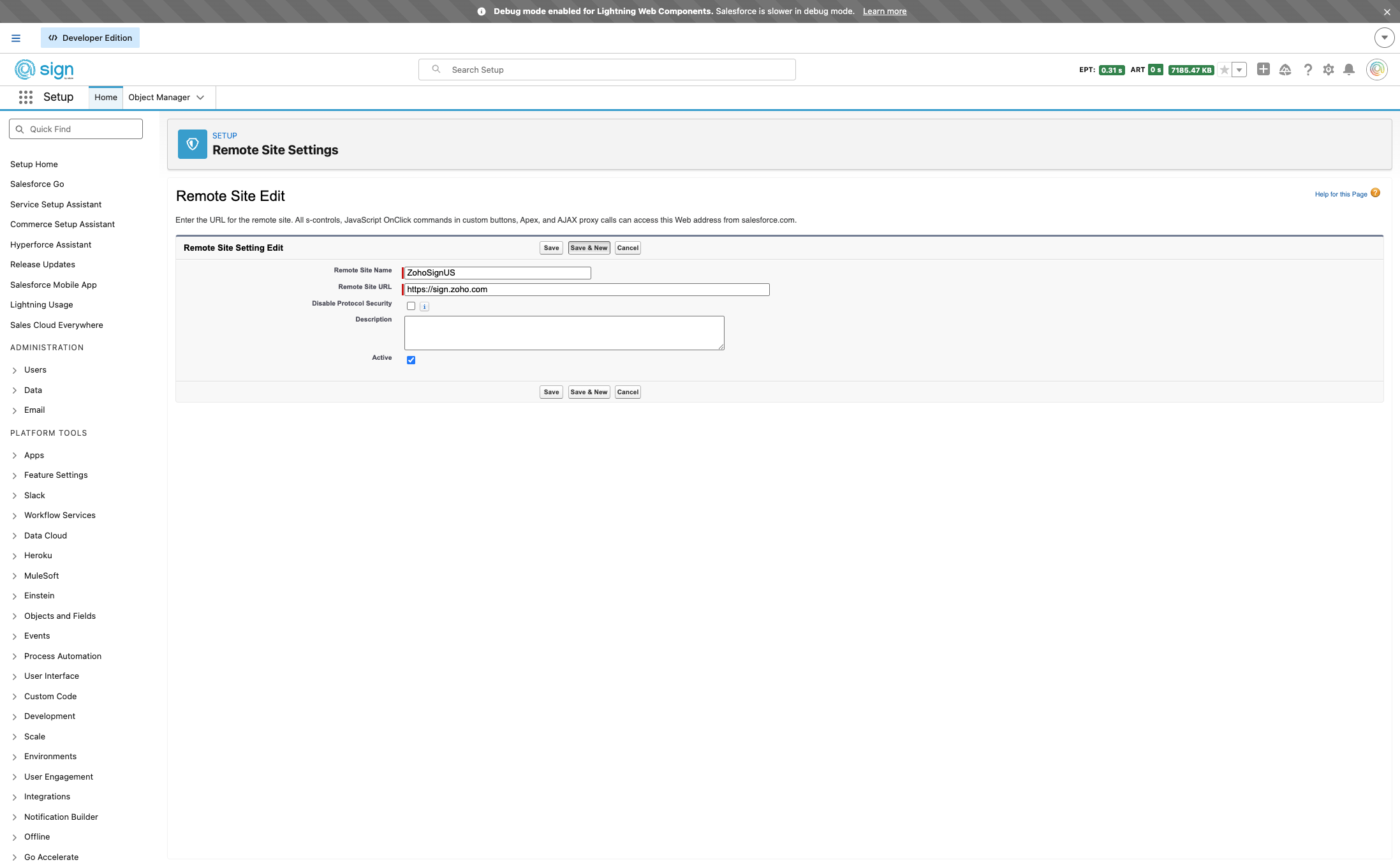
Copy the second URL "https://accounts.zoho.com"
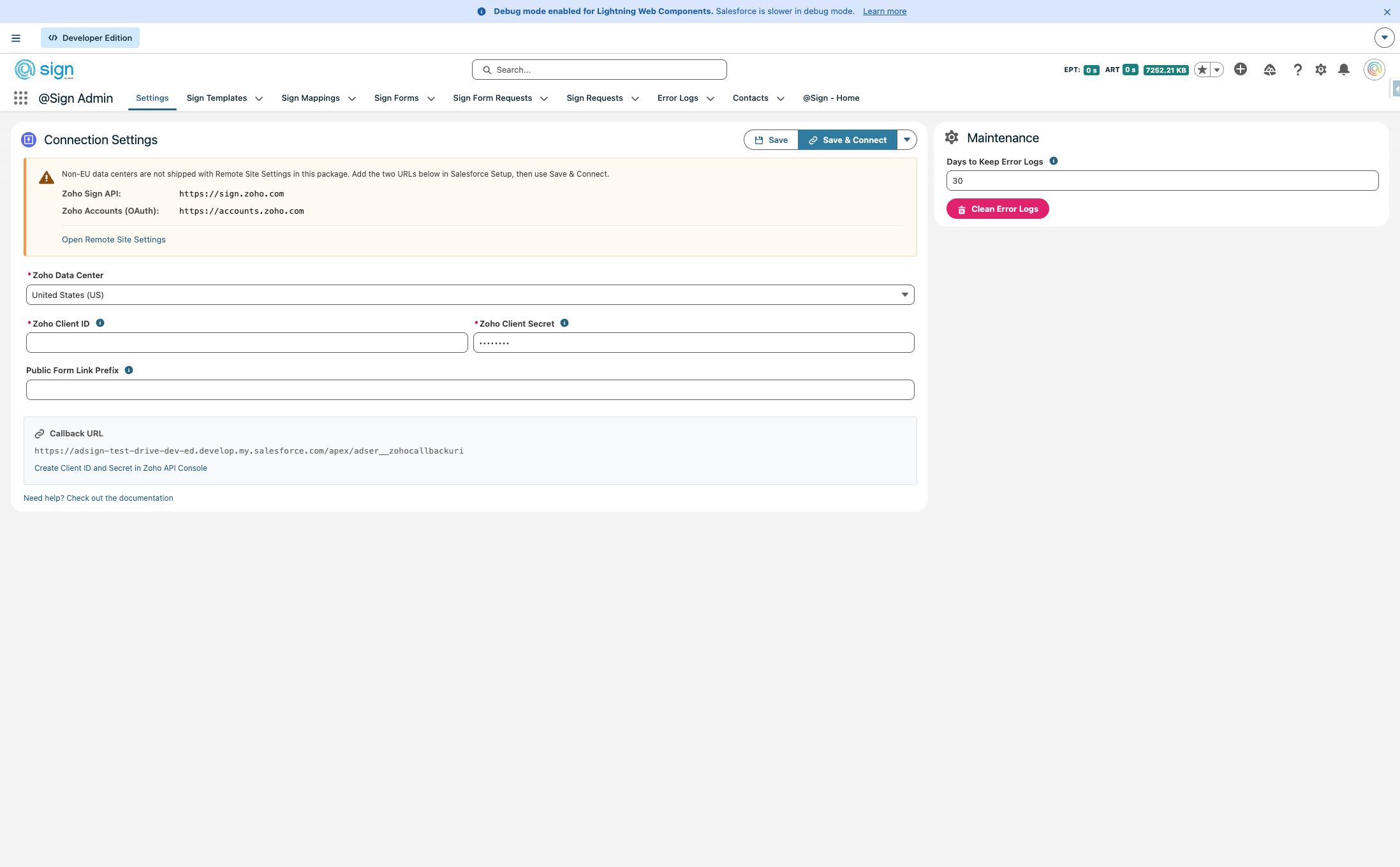
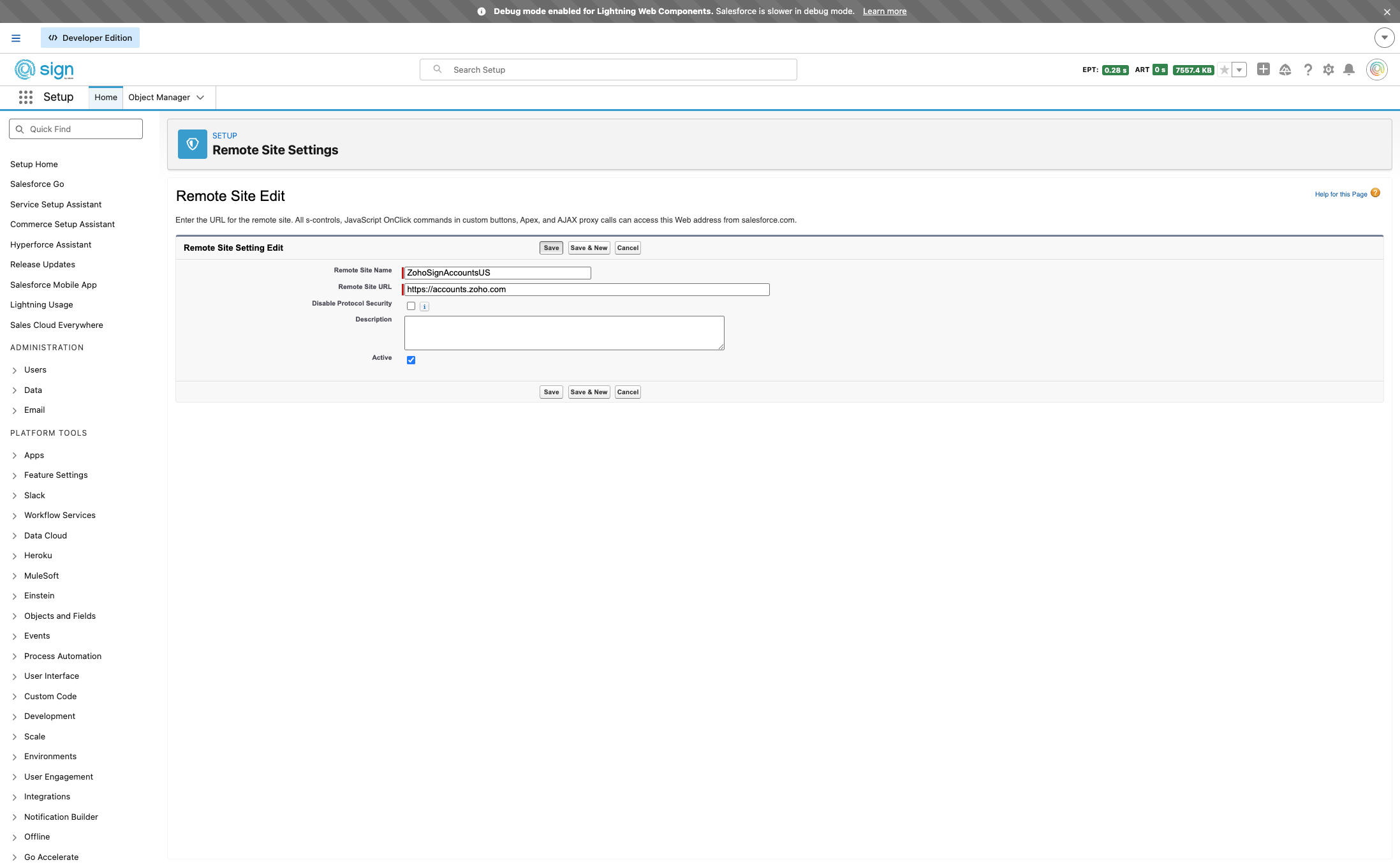
Fill in the name, paste the second url "https://accounts.zoho.com" and press save
OAuth App Creation
Back on the setting page, press "Create Client ID and Secret in Zoho API Console"
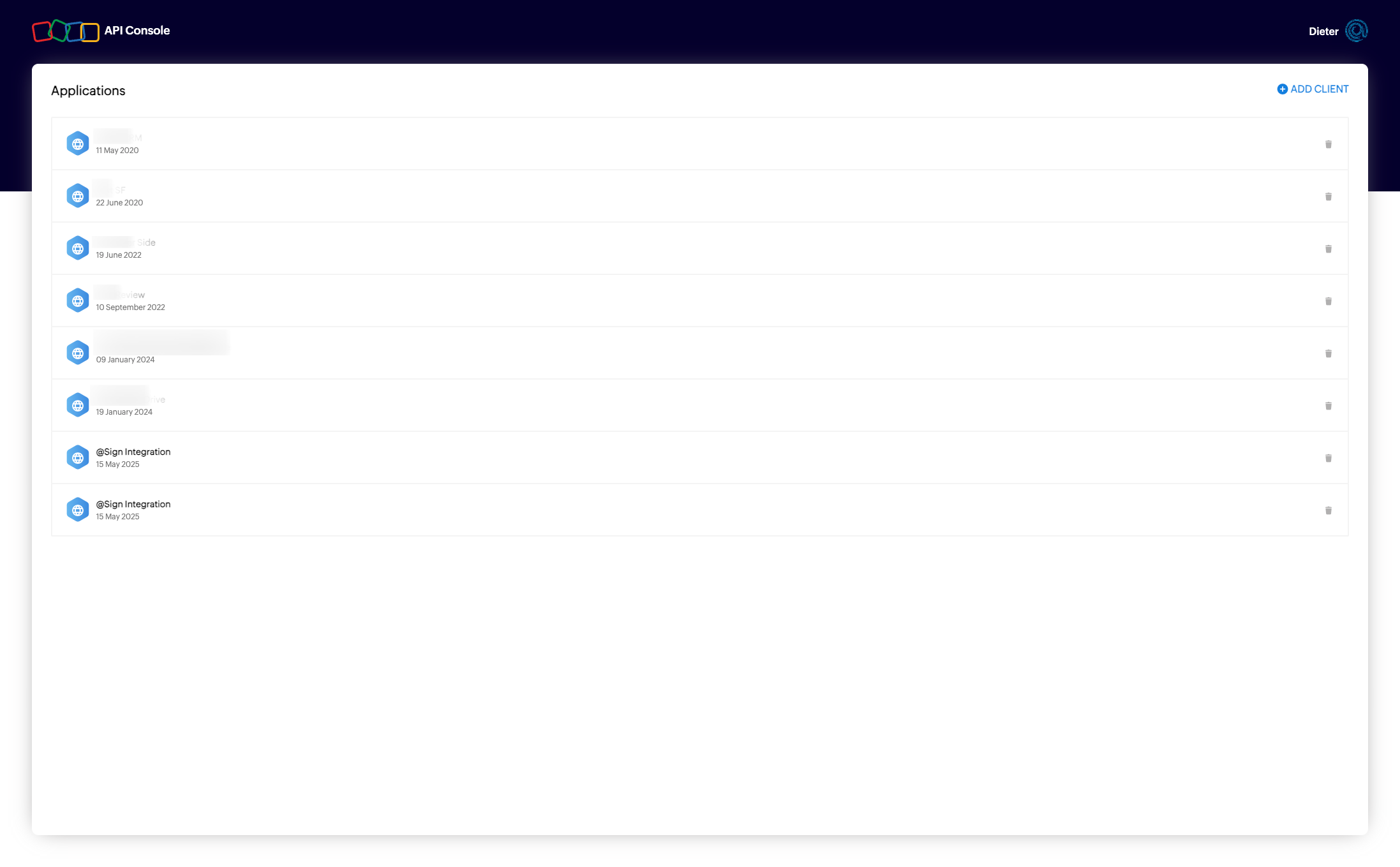
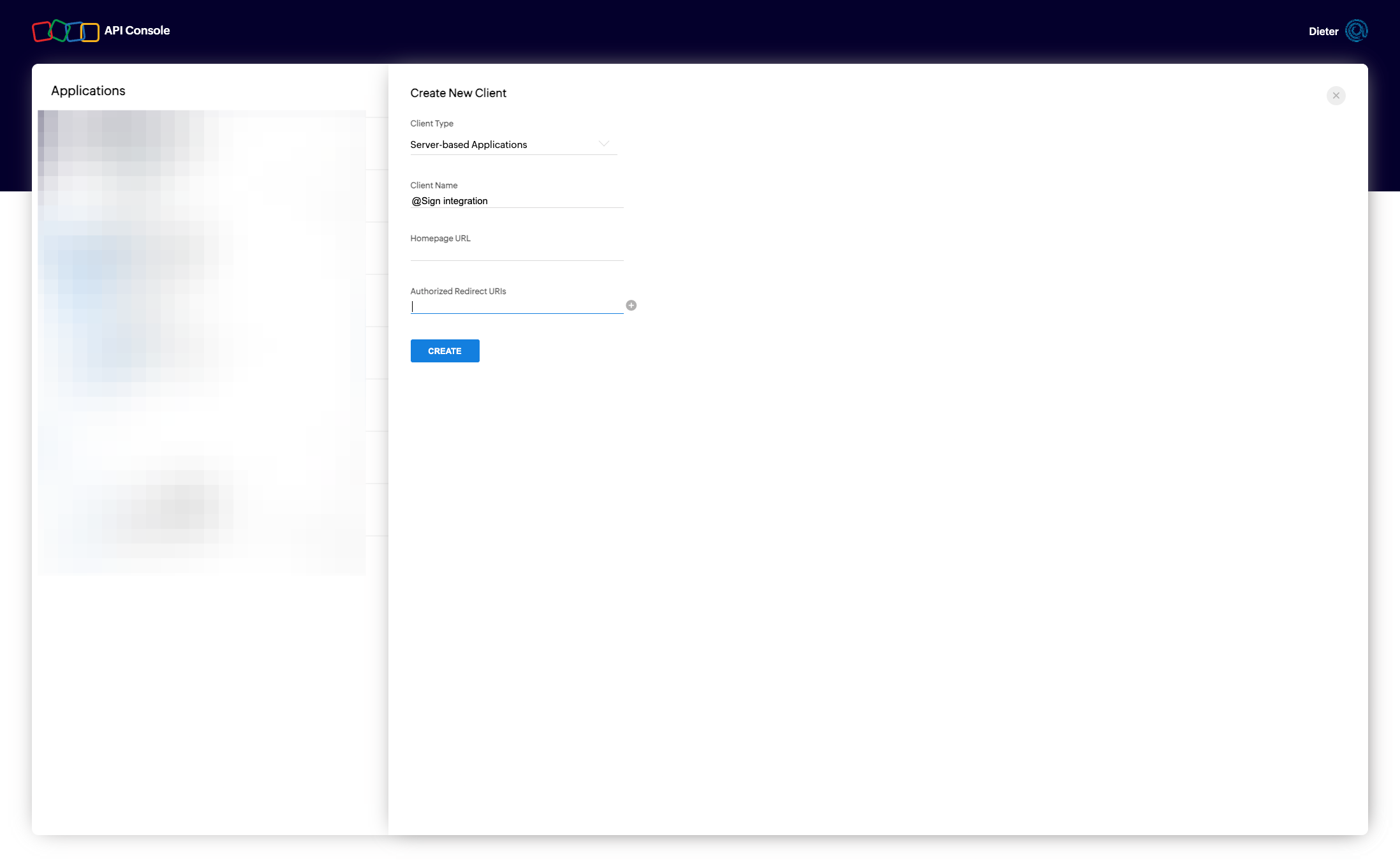
Click on "ADD CLIENT"
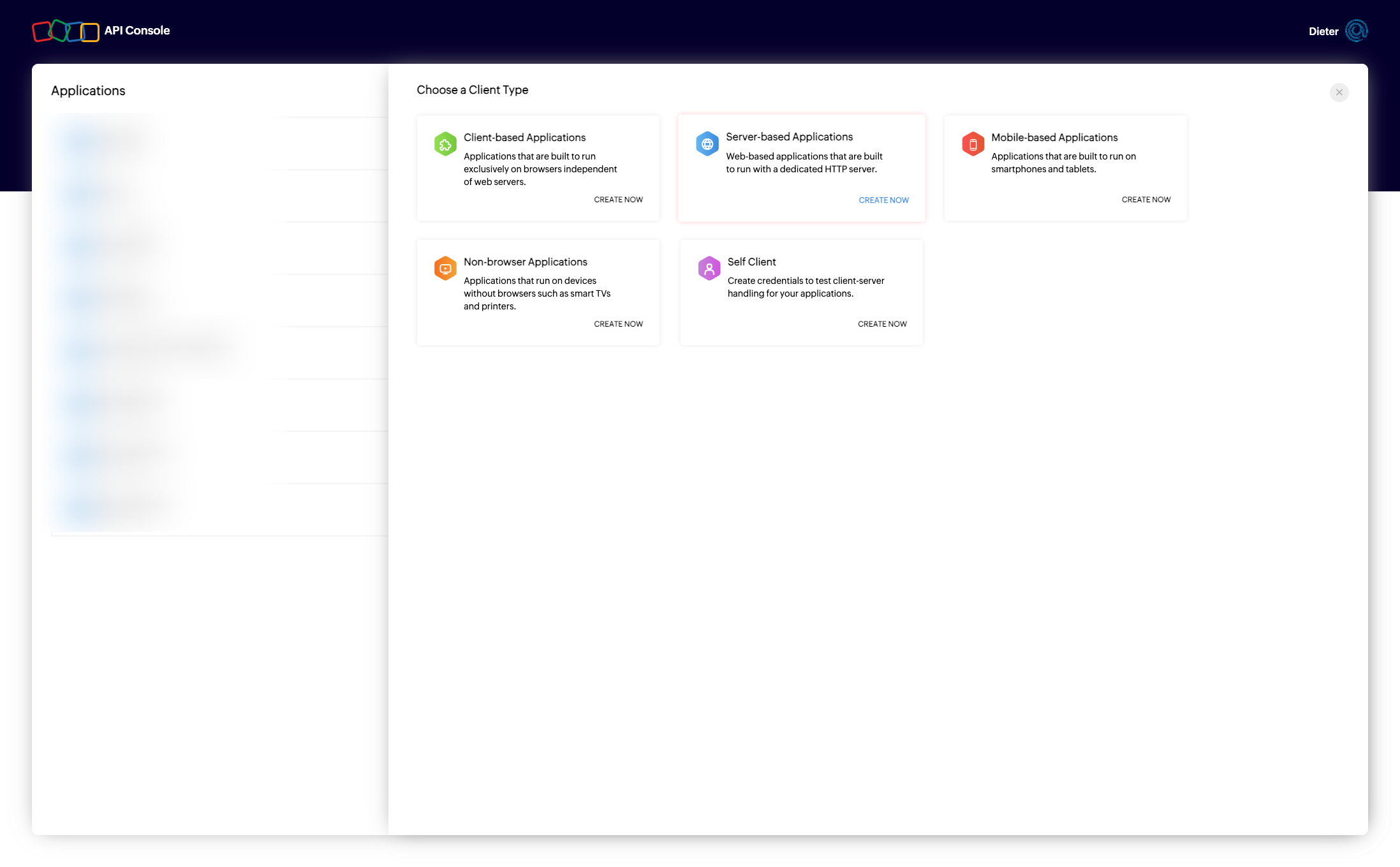
Select "Server based Application"
Copy the callback URL from the settings page
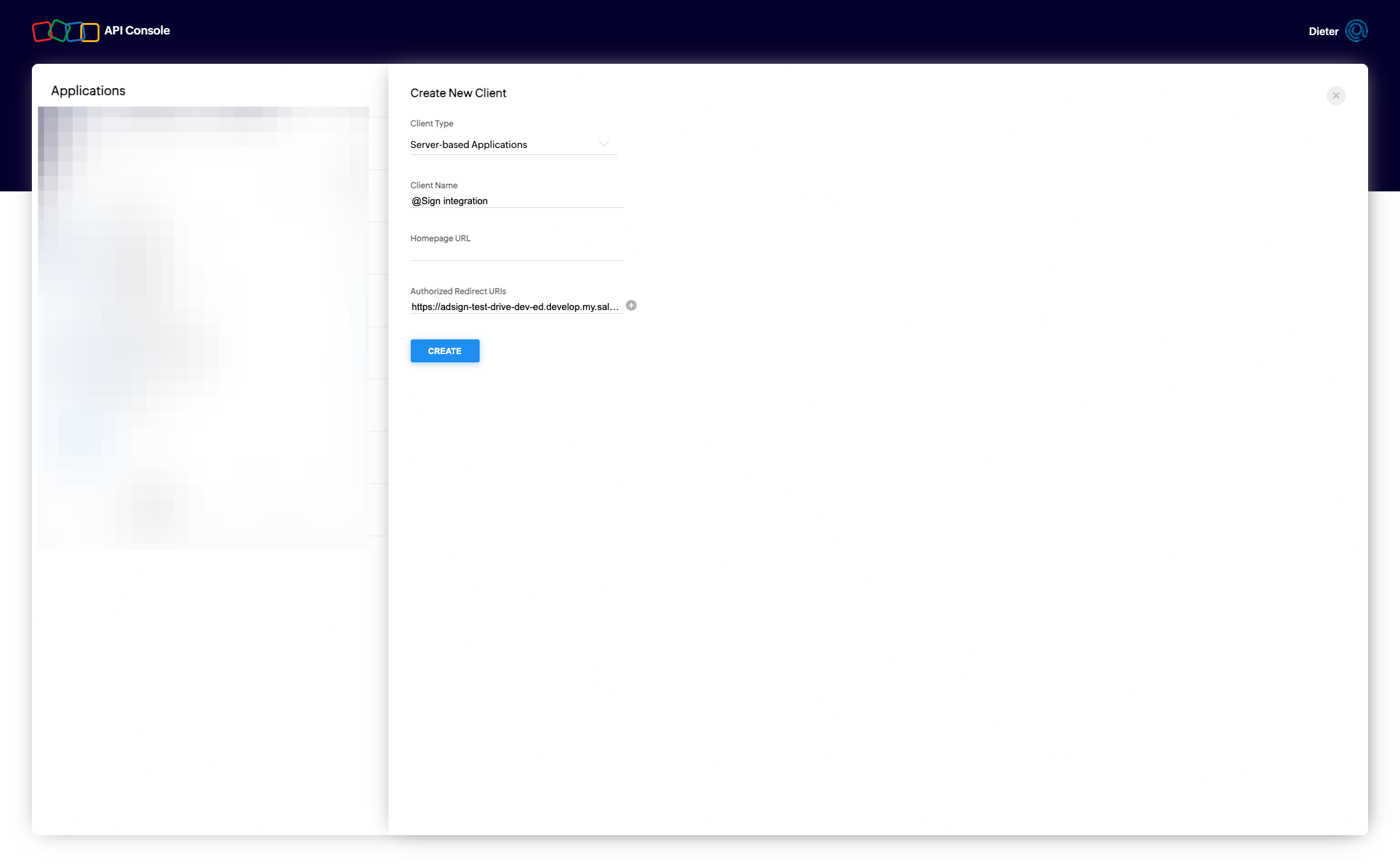
Paste the full URL inside the "Authorized Callback URL". Paste the domain part (https://DOMAIN.my.salesforce.com) inside the homepage url.
Press save
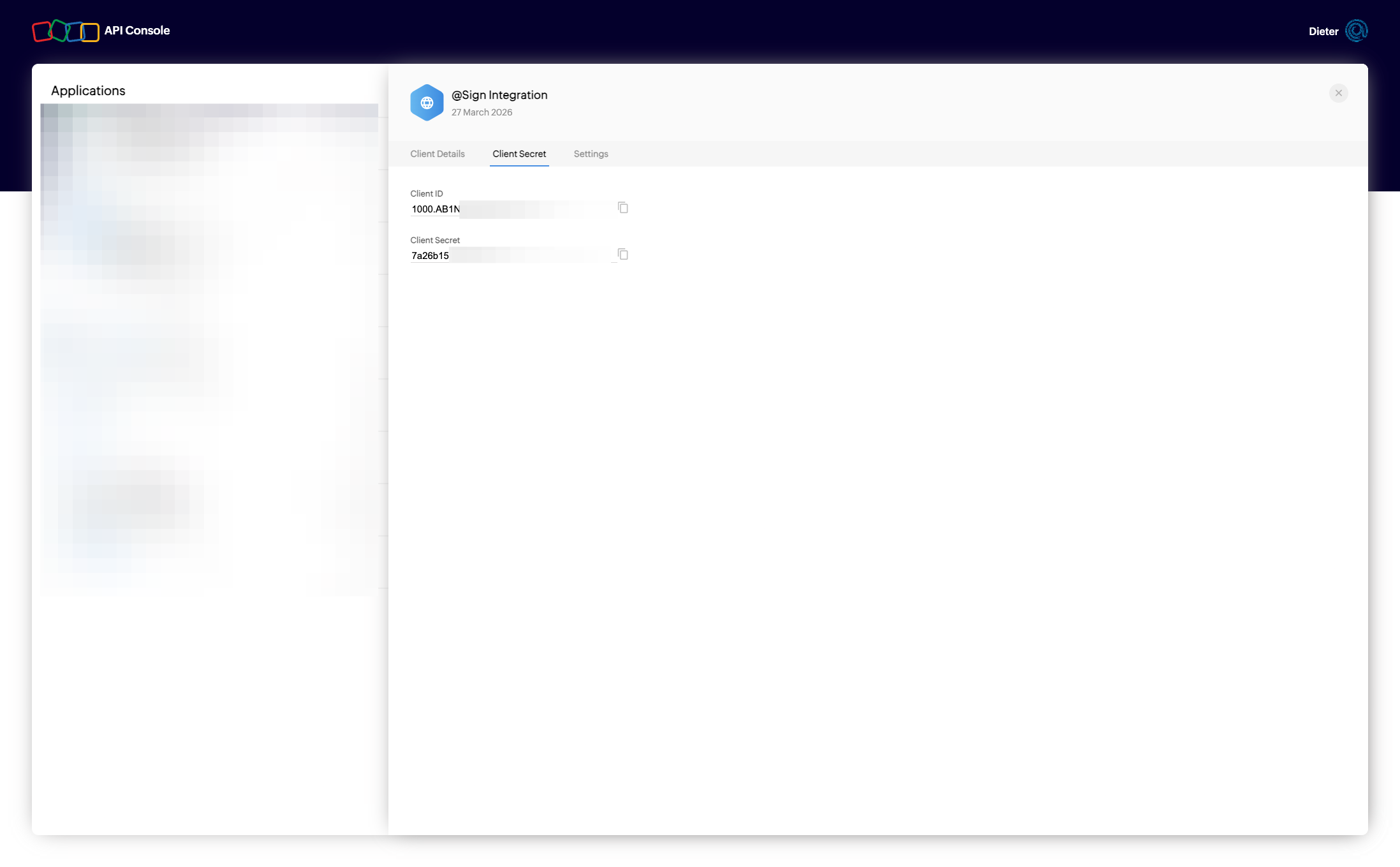
Copy the Client ID and secret
Zoho Sign Connection
Navigate to back to the Settings screen
Paste the client id and secret and click on "Save & Connect"
Login into Zoho Sign
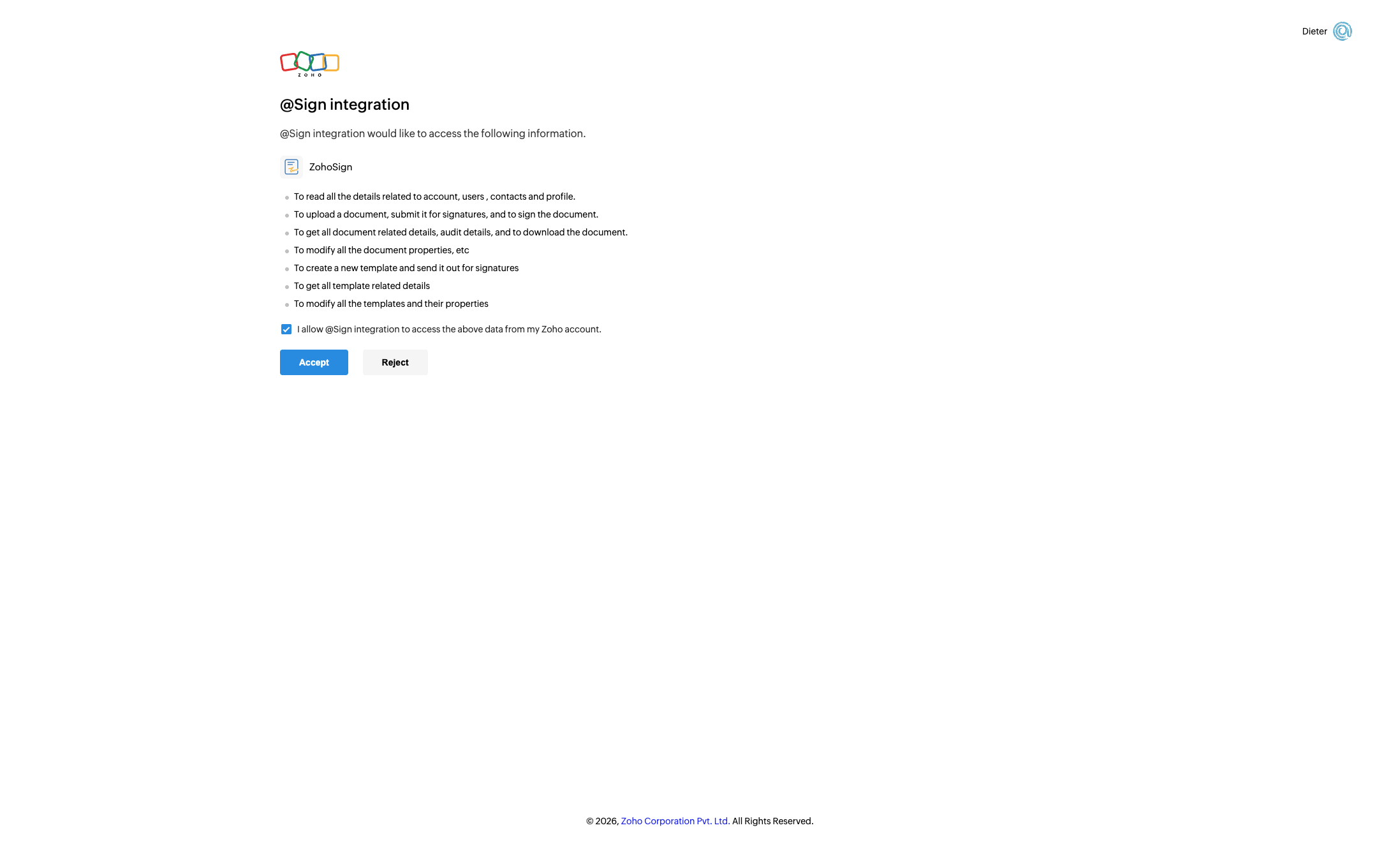
Check "I allow @Sign integration to access the above data from my Zoho account."
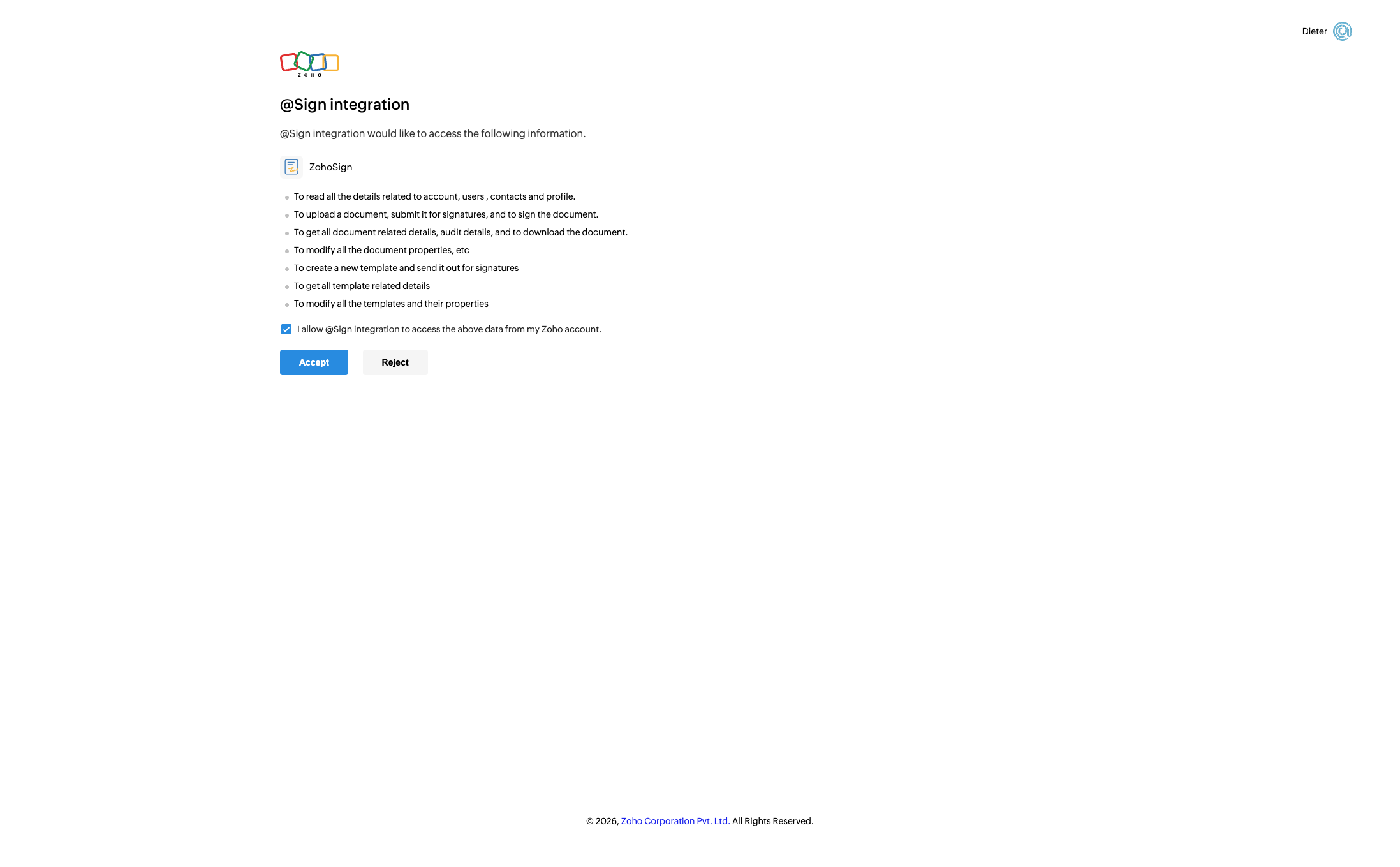
Click on "Accept"
@Sign - Settings & Controls
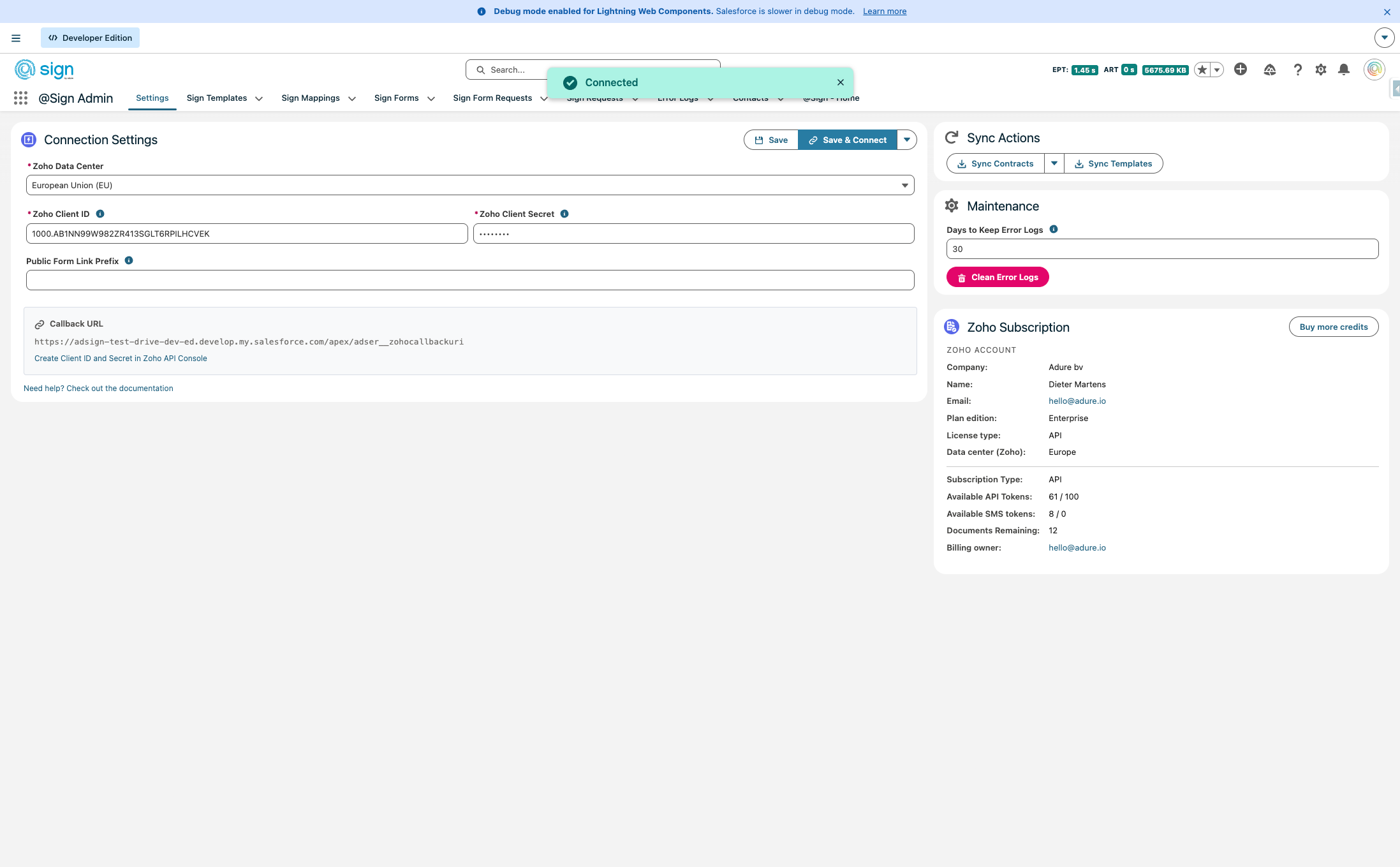
You should see a green popup that confirms you have connected successfully.
@Sign will now sync the contracts and templates every 15 minutes. If you like to have a 'live' integration, see the guide "@Sign - Setup Webhooks"
Alert message
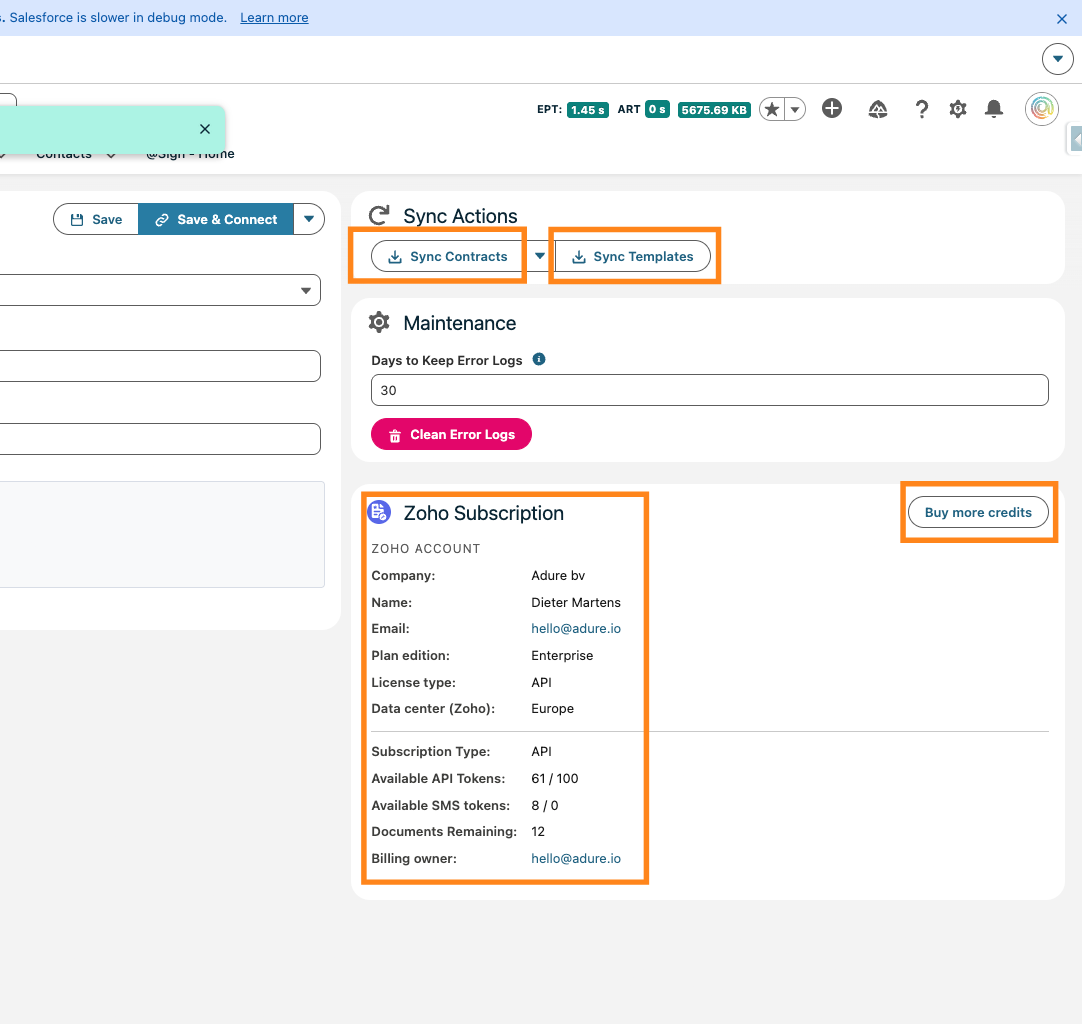
Once connected the sync actions will become available. You can for the integration here to sync the pending contracts, or all the templates. You can also see the Zoho Sign subscription information, like Company name, contact of the signed in user, available credits, subscription plan, datacenter, ... You can also use the "Buy more credits" button to add API tokens to your subscription easily.
Drag to pan